Garmin G1000 for Student Pilots: What You Need to Know
Most new student pilots now train behind a glass cockpit, and the Garmin G1000 has become one of the most familiar systems in general aviation. Instead of scanning a panel full of separate analog dials, you read flight information from large digital displays that bring key data together. Garmin G1000 training helps build habits that transfer into more advanced aircraft later.
This guide goes over how the system works and what changes when you move from steam gauges to glass. You’ll also see why integrated avionics flight training matters if you plan to fly professionally.
What Is the Garmin G1000?
According to Garmin, the G1000 is an integrated flight deck that combines information once spread across several instruments. Garmin introduced the system for general aviation in the mid-2000s, and Cessna, Piper, Beechcraft, and Diamond now offer versions in their aircraft.
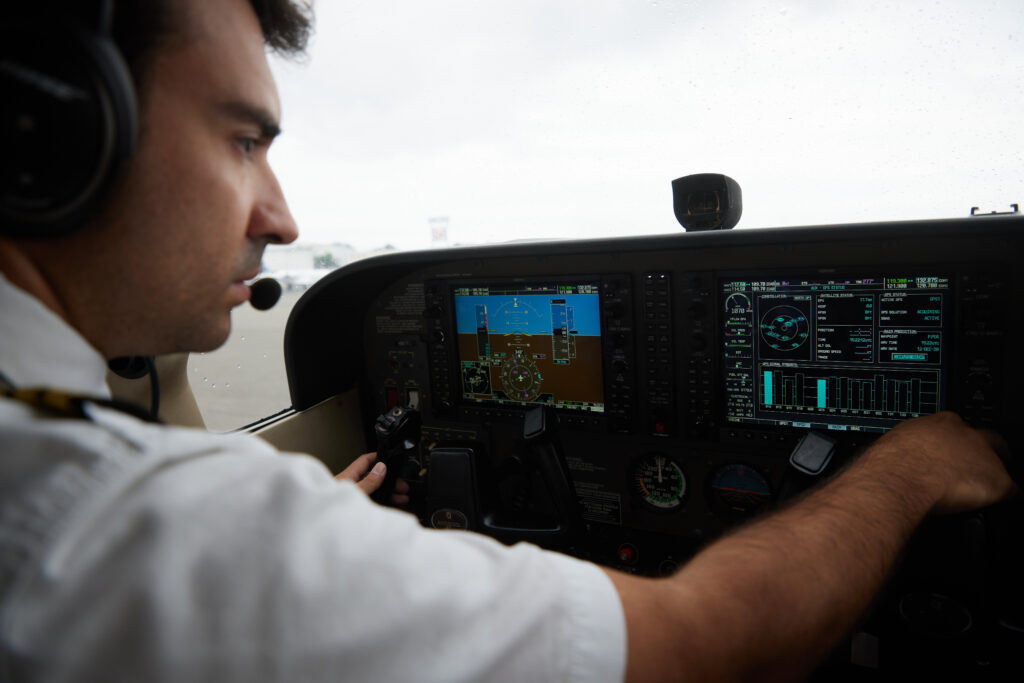
A typical G1000 setup uses two screens. The Primary Flight Display, or PFD, sits directly in front of the pilot and shows flight information, such as attitude, airspeed, altitude, vertical speed, and heading. The Multi-Function Display, or MFD, sits toward the center and shows navigation, engine information, weather, and terrain data.
For a Garmin avionics student pilot, the design means you learn to manage more information in one place from the beginning of training. The displays also reduce the need to shift your attention between scattered gauges. Instead, you build a scan around one integrated picture while your instructor teaches you when to look inside and when to keep your eyes outside.
Glass Cockpit vs. Steam Gauges
Traditional training aircraft often use the familiar “six-pack” of analog instruments. You scan individual dials for airspeed and attitude, then move your eyes to altitude, vertical speed, heading, and turn information. Pilots often call those mechanical instruments steam gauges.
A glass cockpit presents the same core information, but it looks a little different. On the G1000, airspeed and altitude appear on vertical tapes beside a large attitude display. Heading information sits below, while the horizontal situation indicator (HSI) combines navigation information in one view. Once you know where to look, this setup allows you to scan for information more quickly.
Glass does not remove the need for discipline. In fact, more on-screen information can create temptation to spend too much time looking inside the cockpit. Good G1000 glass cockpit training teaches you to use the displays without losing your outside scan. You still need to look for traffic and maintain situational awareness rather than letting the technology pull your attention away from the airplane.
Finding that balance starts early. Your instructor will still expect you to understand what the aircraft is doing rather than follow a magenta line without thinking. A strong scan means checking the information you need and confirming it makes sense, then returning your attention to flying.
The Core Components Every Student Should Know
You do not need to master every menu before your first lesson. Start with the building blocks and learn how they work together.
- Primary Flight Display (PFD): The PFD shows attitude and airspeed along with altitude and vertical speed. Its HSI displays guidance from the Global Positioning System (GPS), very high frequency omnidirectional range (VOR) navigation aids, or an instrument landing system (ILS).
- Multi-Function Display (MFD): The MFD includes the moving map and engine information. Depending on the installation, it may also display terrain and traffic. Datalink weather and flight-planning functions add more information to the same display.
- GFC 700 autopilot: Garmin’s digital flight control system ties into the G1000 and supports functions such as altitude hold or heading control. It also tracks GPS courses and supports coupled approaches. The system reduces workload, but you remain responsible for monitoring what the autopilot is doing.
- Reversionary mode: If one display fails, all is not lost. Reversionary mode displays the primary flight instruments and essential engine information on the remaining screen. Garmin’s G1000 training guide describes this backup display mode and explains how pilots activate it when needed. Standby instruments provide an additional backup.
Learning autopilot management matters just as much as learning what each display shows. Quality training also gives you practice handling a display failure so you know what changes if part of the system fails.
G1000 vs. G1000 NXi
As you explore flight schools and avionics training, you may come across the Garmin G1000 NXi, an upgraded version of the original G1000 system. While maintaining the familiar flight deck layout, the G1000 NXi features enhanced hardware, updated software, and improved capabilities.
Students completing a G1000 NXi tutorial may spot faster processors and sharper displays, as well as wireless database updates and expanded navigation features. Depending on the installation, you may also notice visual approach guidance, added vertical navigation tools, or runway monitoring features.
So why use the G1000 if you may not use it later? Put simply, the core skills transfer. Regardless of the equipment, you’ll need to read digital flight data and manage navigation through an integrated system. You’ll also have to monitor automation and stay aware of the active mode. Garmin’s G1000 NXi adds faster map rendering and, with compatible Flight Stream equipment, wireless database support. Where installed, SurfaceWatch runway monitoring provides another layer of situational awareness. Once you understand the original G1000, moving to the NXi feels like learning an updated version, not like starting from scratch.
Why Integrated Avionics Training Matters for Your Career
Today, professional pilots use glass flight decks. Airliners rarely use the Garmin G1000; many use systems from Collins or Honeywell. The exact buttons and menus can change as you transition to different aircraft throughout your career. Still, as mentioned above, several core habits carry over.
You will already understand tape-style airspeed and altitude displays. Your experience will also include managing a flight management system and watching automation modes. Those habits support the transition to larger aircraft because you aren’t learning the basic logic of a digital cockpit for the first time.
That is one reason career-focused schools use integrated avionics flight training early. A G1000 cockpit teaches you how to manage information and automation while still flying the airplane. It also gives you practice dividing your attention between the displays and the world outside.
You’ll also learn mode awareness: knowing what the automation is doing right now instead of what you expected it to do. That habit becomes more important as aircraft systems grow more advanced. The names and controls may change later, but the need to verify the active mode will not.
Instrument flight rules (IFR) training gives you the ability to track navigation accurately while managing workload, demonstrating that you can multitask appropriately during a flight. A well-run glass cockpit organizes that information much like the electronic flight decks you will encounter later in professional aviation.
Train on Glass From Your First Lesson at PEA
Phoenix East Aviation gives students access to modern avionics from the beginning of training. PEA’s fleet includes more than 70 aircraft, with Cessna 172s equipped with Garmin G1000 glass cockpits. Our school also uses Piper Senecas with Garmin G500 displays.
Students get additional practice in Redbird simulators. PEA offers full-motion Redbird FMX simulators and TD2 tabletop units, giving you another place to work through procedures and failure scenarios before facing them in the cockpit itself. It’s all part of our career-focused flight training environment.
Being a good pilot requires building the solid habits that keep the plane up in the air and the ride smooth and comfortable. Rather than treating modern avionics as an add-on later, it helps to learn how to manage automation while multitasking in the flight deck. Adding scenario-based training to this also gives you practice using the technology when workload increases.
Ready to start your training? Take a look at PEA’s Professional Programs to learn how its training path prepares you for a career in aviation and what your first steps toward the flight deck could look like.
Sources
https://pea.com/about-us/choosing-a-flight-school/
https://pea.com/courses/professional-programs/
https://www.garmin.com/en-US/p/6420/
https://www.faa.gov/sites/faa.gov/files/training_testing/training/fits/guidance/G1000.pdf